Migration Guide from v4.0 to v4.1.x
Checking the version of the tool
An important preparation that you need before you proceed is to check which version you have of the FPMA tool. We started to count the versioning from FPMA v4.1.x. So if you have an older version (FPMA v4.0), you will need to perform the major update to v4.1.
To check whether you have ≥ v4.0, head over to the tool’s main interface, open the sidebar on the right, login with your credentials as follows. If you see the two buttons at the bottom of the sidebar, it means that you have a version greater than v4.0.
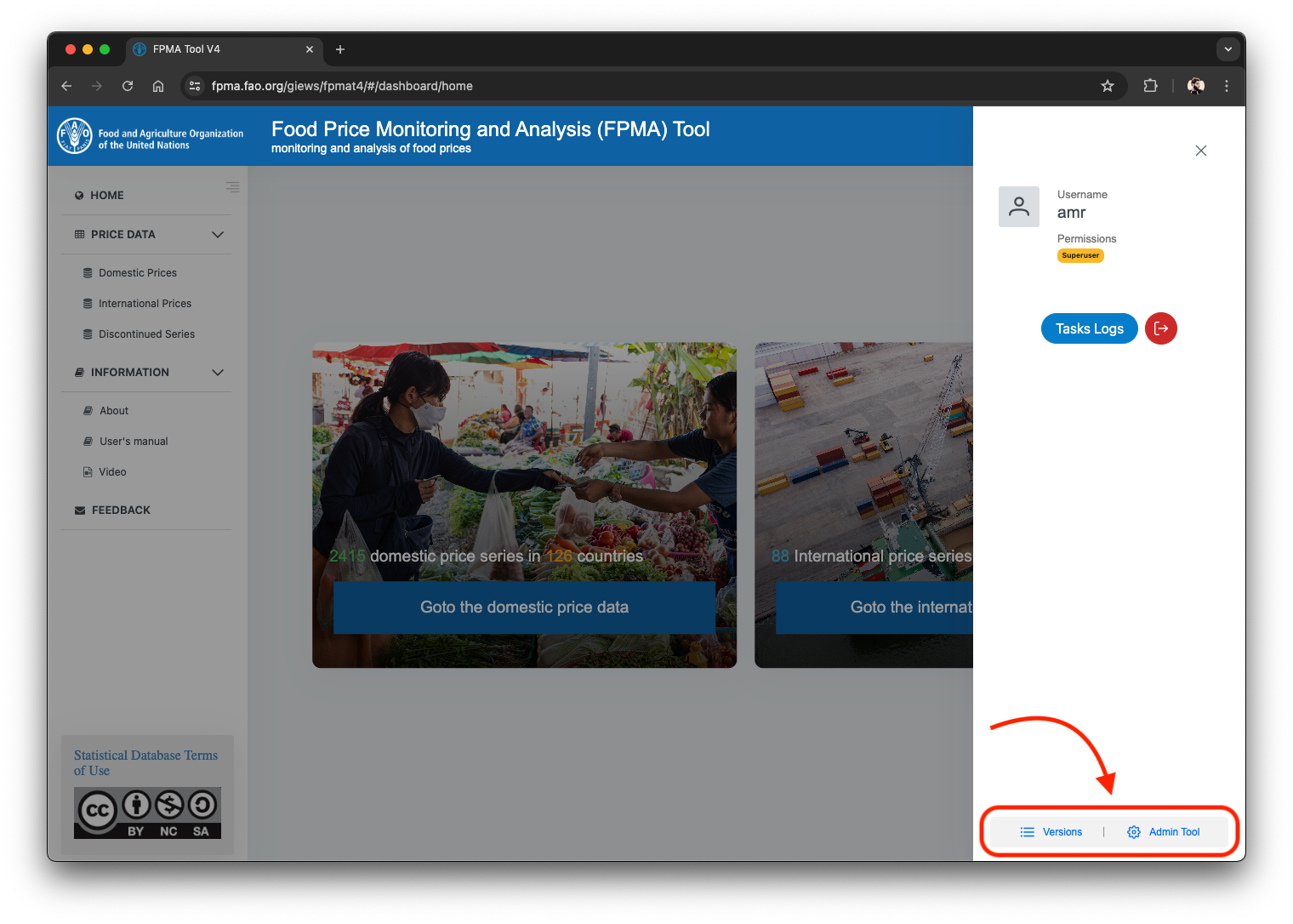
You can then go ahead and click on Versions to see more details about the version of the FPMA that you have.
You can see that there’s a legend on the top left corner
- Green → Newer version available
- Blue → Your current version of the tool
- Grey → Older versions of the tool
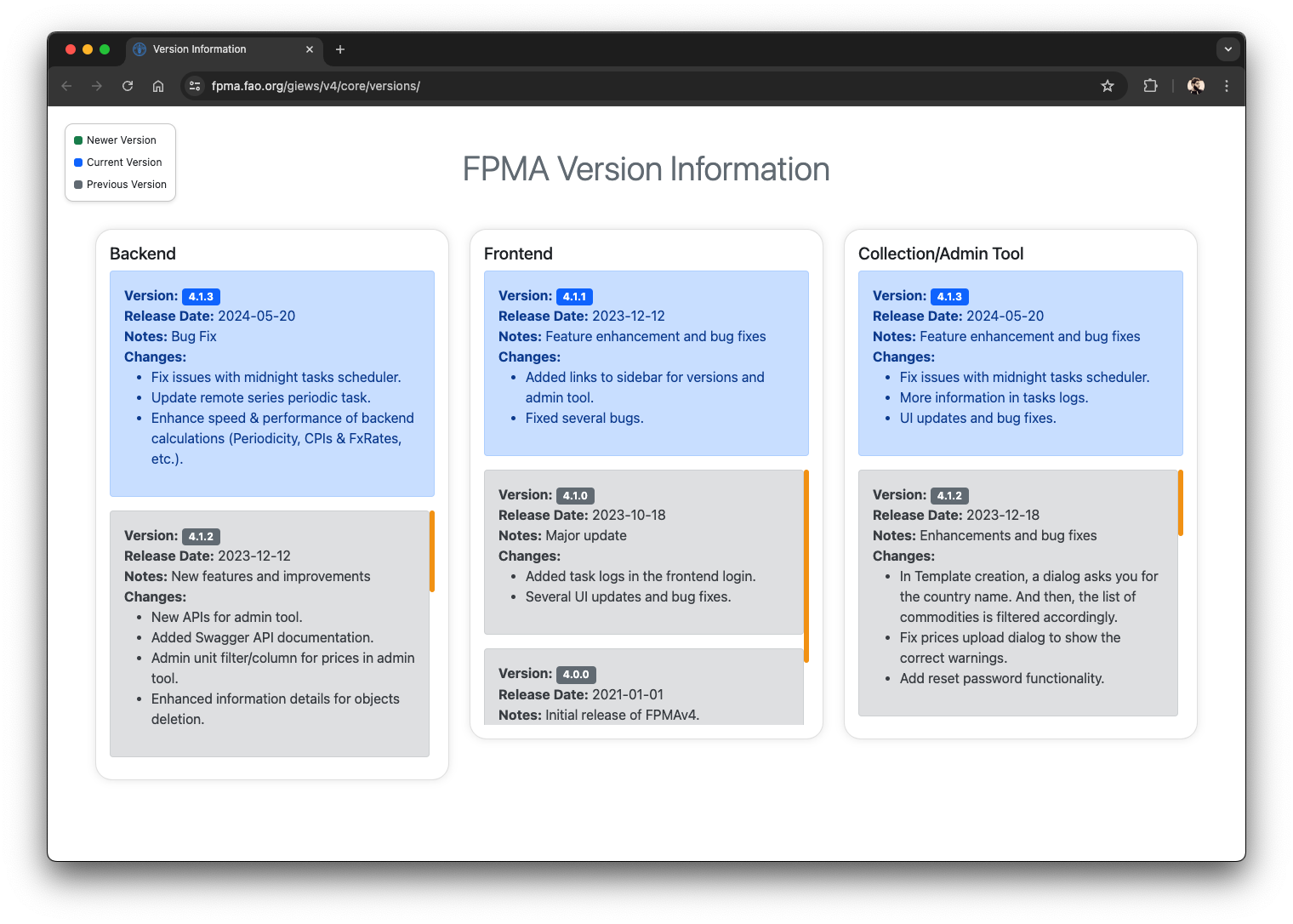
The versioning of the tool is separated into to 3 modules. Backend, Frontend, Collection/Admin tool. You can have different versions in the 3 modules, and it is normal.
You can also find some notes and change logs about the older/current/newer versions.
Migrating from ≤ v4.0
After you have identified your version of the tool, to migrate to the v4.1.x you need to do some preparations before.
Identify the volumes containing the data
This step is very important so you avoid the loss of data. The goal here is to identify which volumes contain the static data necessary for the frontend assets to load, the data in the database, and the files uploaded by the user such as commodity images, logos, html files, pdf files, etc.
Below is a table containing the 3 volumes used by the tool
| Volume | Description |
|---|---|
| static_volume | Static assets necessary for the tool to load (JS, CSS, HTML, Images, Icons, etc.). |
| pgdata | PostgreSQL Database containing all the data in the database (Prices, Series, Commodities, etc.). |
| media_volume | Files uploaded by the user (Commodity images, Logos, HTML files, PDF files, etc.). |
This step can be done in 2 ways, first one is through docker desktop and the other one is through CLI if you do not have access to a desktop GUI environment and you are only accessing your machine through CLI.
Using Docker Desktop
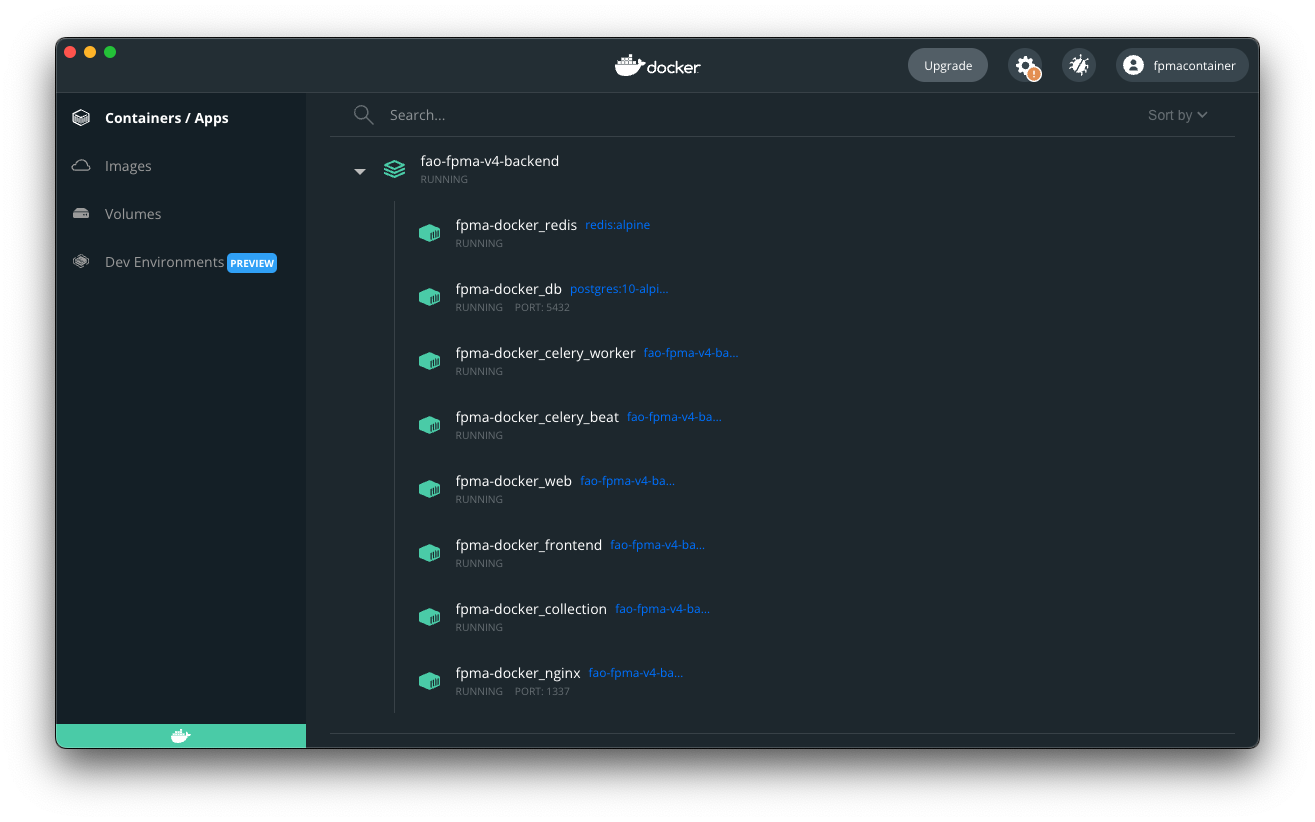
While the tool is running, open Docker Desktop → Containers / Apps. Identify which container is running for the tool. In my case, the container group running is called fao-fpma-v4-backend and when expanding it, you can see the 8 containers holding the 8 services needed for the tool to run with their corresponding names.
Next step is to head over Volumes in the right sidebar as follows and identifying which volumes exactly are being used. You might find some hash-named empty volumes created by docker, and it’s fine you can ignore them or delete them.
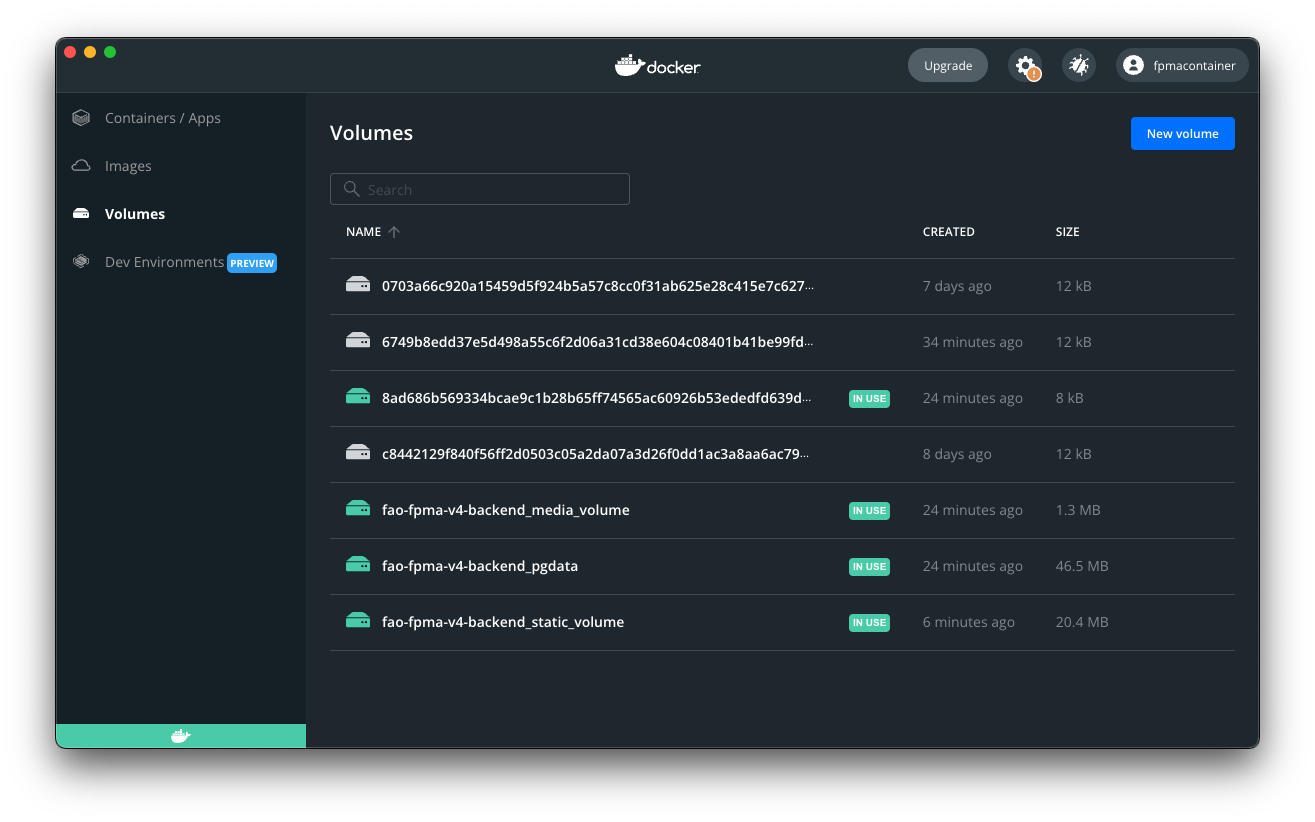
You should identify the 3 volumes discussed before with their names prefixed by the container’s group name.
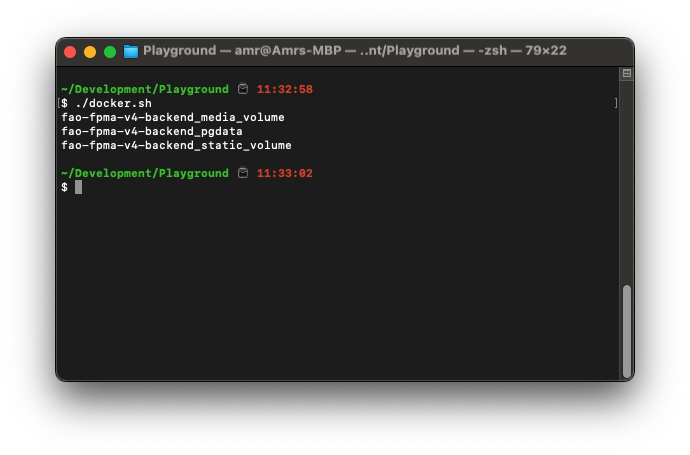
My container’s group name is fao-fpma-v4-backend, so the 3 volumes will be
- fao-fpma-v4-backend_static_volume
- fao-fpma-v4-backend_pgdata
- fao-fpma-v4-backend_media_volume
Using Docker CLI
To know the particular volumes used by the FPMA tool using CLI, it is not a very straight forward task. You need first to fetch the IDs of the running containers then fetch the corresponding volumes linked to every container.
For more info, please refer to Docker documentation.
Below is a bash script that I wrote that does exactly that in an automated manner. The script will print out the 3 names of the volumes used. Make sure that you run this script while the tool is running with docker active.
#!/bin/bash

# Initialize an array to hold volume names
declare -a volume_names

# Get a list of all container IDs in the Docker Compose project
containers=$(docker ps -q)

# Loop through each container and list its volumes
for container in $containers; do
  # Collect volume names for each container
  volumes=$(docker inspect --format '{{range .Mounts}}{{if eq .Type "volume"}}{{println .Name}}{{end}}{{end}}' $container)
  # Append volumes to the array, ensuring each name is treated as a separate element
  while read -r volume; do
    # Check if the volume name contains "pgdata", "static_volume", or "media_volume"
    if [[ "$volume" == *"pgdata"* || "$volume" == *"static_volume"* || "$volume" == *"media_volume"* ]]; then
      volume_names+=("$volume")
    fi
  done <<< "$volumes"
done

# Convert the array into a unique array of strings
unique_volumes=($(echo "${volume_names[@]}" | tr ' ' '\n' | sort -u | tr '\n' ' '))

# Print the unique array of strings
printf "%s\n" "${unique_volumes[@]}"
Copy the script above to a new empty file with a .sh extension. After that run the following:
# Grant permission to run as an executable
chmod +x ./docker.sh

# Run the script
./docker.sh
The output should be similar to this
After fetching the names of the volumes, you can follow the next guide for the script’s usage and you will need those names later on during the process.