Price Viewer Configurations
All configurations of the Price Viewer are done using Price Viewer Configurations and require superuser access level for the FPMA instance you wish to edit.
- Price Viewer Configurations can be accessed from the FPMA Admin Tool main sidebar menu.
- The Price Viewer Configurations main menu is horizontal at the top of the screen and includes Tool Customizations, Language Labels, Language Texts and Sidebar.
- The specific operations available under each menu item are listed in the left hand side panel.
- The main panel displays information relating to each operation.
- The blue disk icon located in the top right area of the main panel allows the user to save any changes. It is important to save each time a change is introduced.

Tool Customizations
TOOL CUSTOMIZATIONS allows users to edit the browser, header, home, and sidebar of the Price Viewer, including the choice of font, color, and images to be included.
Browser
The BROWSER menu item allows the user to modify the icon and the text displayed in the browser tab of the Price Viewer.
- BROWSER ICON - Refers to a favicon file for the browser tab. This file can be uploaded to the media folder of the FPMA instance or added as a web link that points to an external file.
- BROWSER TITLE - Refers to a label text string to appear on the browser tab.

Header
The HEADER menu item allows users to modify the colors and logos in the top bar of the Price Viewer. The text displayed in the header bar is stored inside specific language-dependent keys (key-header-title and key-header-subtitle; refer to the Language Texts section for more information).
- HEADER COLOR - Allows the user to customize the header background color. The HTML color name or HEX value can be used (i.e., colors can be specified using their name, such as grey, or their hexadecimal code, such as #5792c9 for UN Blue).
- FONT COLOR - Allows the user to customize the color of the header title and subtitle. The HTML color name or HEX value can be used. The header title and subtitle texts must be entered in the Language Texts using the key-header-title and key-header-subtitle keys.
- BOTTOM LINE COLOR - Allows the user to customize the color of a fine horizontal line under the header. The HTML color name or HEX value can be used.
- HEADER LOGOS - Allows the user to customize the logos. Multiple logos are permitted. Use the
+button to add a reference to a logo to appear on the left side of the header. There are five settings for customizing the header logo:- URL - Add the logo file from the media folder of the instance or provide a link that points to an external file. If the file is loaded in the media folder, it is not necessary to include the full file URL.
- WIDTH - The width of the logo can be adjusted by specifying a pixel number, e.g., 250px.
- EXTERNAL - Set to false if the file is loaded to the media folder or true if the file is in an external location.
- MULTILINGUAL - Set to true if there are different logo versions corresponding to the different languages of the instance.
- LANGUAGE POSTFIX - In the case of a multilingual logo setup, one file must be provided for each language. Define the postfix used with the logo name to distinguish the language versions, e.g., if the instance has two language versions, English and French, then create two logo files:
logo__en.PNGandlogo__fr.PNGand enter__as the language postfix. The language suffix is determined by concatenating the logo name, LANGUAGE_POSTFIX, and the 2-digit language code.

Home
The HOME menu item allows users to customize the Price Viewer home page. The home page is shown by default in the FPMA graphical user interface (GUI) main window when the root URL for the instance is accessed. There are four settings for the home page:
- URL - A reference to the HTML file to use as the home page. Add the file from the media folder of the instance or provide a link that points to an external file. If the file is loaded in the media folder, it is necessary to enter only the name of the file without any path or extension. If the file is in an external location, it is necessary to put the full URL of the file.
- EXTERNAL - Set to false if the home page file is loaded to the media folder or true if the file is in an external location.
- MULTILINGUAL - Set to true if there are different file versions corresponding to the different languages of the instance.
- LANGUAGE POSTFIX - Define the postfix used with the home page file name to distinguish the language versions, e.g., if the instance has two language versions, English and French, then create two files:
home__en.PNGandhome__fr.PNG, with__as the language postfix.
Other file extensions are permitted in addition to HTML, depending on the browser`s ability to render them. PDF files are a common example.

Sidebar
The Tool Customizations SIDEBAR menu item setting should be left as false. It is specific only to the FAO global FPMA Tool.

Language Labels
LANGUAGE LABELS allow users to configure the FPMA Tool GUI with any number of languages. However, the contents of the database (i.e., market names, commodity names, etc.) can only be made available in one language, i.e., the language with which they are added to the database.
The languages displayed in the Price Viewer are determined by the order of the languages that appear under LANGUAGE LABELS.
- To add a language, select
+ADDcontrol from the menu. Enter the same ISO 639-1 alpha-2 code as the KEY and the language name as the TITLE. The TITLE is what will appear in the language menu in the header of the GUI. - Use the language menu options to rename, delete, or set a language as the default. The default language appears with
DEFAULTafter its name in the list of languages.

Language Texts
LANGUAGE TEXTS enables text translation into new languages. It is necessary to add in the LANGUAGE TEXTS section, a set of text strings corresponding to each of the languages added in the LANGUAGE LABELS section.
- Available language options are shown in the left-hand side menu while strings corresponding to the selected language are shown in the main panel.
- The search function can be useful to quickly find a value to edit. For example, typing "sidebar" will show all the user-defined key: value pairs.
- Use the commands at the top of the main panel to add or remove a single language key.
- To add a new language use the
+ADDcontrol. The name of the language must be "LANGUAGE-" followed by the ISO 639-1 alpha-2 language code. - Use the menu options to duplicate, export, import, rename, or delete language texts.
- The normal procedure to add a new language is by importing the set of strings from a CSV file. To export or import a language file, use the commands in the dropdown menu available for each language.
- The easiest way to create a new language file is by downloading (i.e., Export CSV) the provided English set of strings and using this as a basis to create a new file in the language of choice.
- The following steps allow for efficient translation management in multiple languages:
- Export the CSV file with a set of strings from an existing language (e.g., English).
- Save and back up the file.
- Translate the text into the target language.
- Navigate to the target language under LANGUAGE TEXTS.
- Select Import CSV from the menu options and upload the translated set of strings.

Sidebar Customization
SIDEBAR allows users to customize current parent items of the left-hand side menu of the Price Viewer. Corresponding properties are shown in the main panel and vary depending on the parent item "type".
- Parent item "type" options include Home, Parent, Internal Page, External Link, and Datasets.
- New parent items can be added to the sidebar menu using the
+ADDcontrol. - Children items can be assigned to specific parent item types.
- New parent items can be added to the sidebar menu using the
- With the "Home" parent item type, the only property that should be changed is the icon, if you wish to use a different one. The text to appear in the menu should be assigned to the "key-sidebar-home" key in the LANGUAGE TEXTS and the HTML file to be loaded should be defined under the TOOL CUSTOMIZATIONS setting.

A parent item of type Parent has no action but can have Children items assigned to it.
- LABEL KEY - Refers to the key for the label in the LANGUAGE TEXTS.
- ICON - Icons can be chosen from the fontawesome library. The icon name should be appended to "fa-" i.e., if the chosen icon is
address-bookthe name to be used here would befa-address-book - After assigning a LABEL KEY and ICON, add Children items using the
+ADDbutton in the Children Header. Children items can be one of three types: Internal Page, External Link, or Dataset. See the next sections for explanations of each item type.

Internal Page
A parent item of type INTERNAL PAGE allows the user to add a parent item to the sidebar menu that will open HTML content inside the main window of the FPMA Tool.
- LABEL KEY - The reference to the key for the label in the LANGUAGE TEXTS.
- ICON - Icons can be chosen from the fontawesome library. The icon name should be appended to "fa-" i.e., if the chosen icon is
address-bookthe name to be used here would befa-address-book - TYPE - This should be "internalpage"
- ID - The ID appears in the URL linking to this item of the menu. The ID must be unique among all sidebar menu parent and child items.
- URL - The file can be uploaded to the media folder of the instance (see the Frontend File Upload section) or the link can point to an external file. If the file is loaded in the media folder, it is not necessary to include the full file URL. If the file is in an external location, the URL must be of type
https - EXTERNAL - Set to false if the file is loaded to the media folder or true if the file is in an external location.
- MULTILINGUAL - Set to true if there are different file versions corresponding to the different languages of the instance.
- LANGUAGE POSTFIX - Define the postfix used with the file name to distinguish the language versions, e.g., if the instance has two language versions, English and French, then create two logo files: home__en.PNG and home__fr.PNG with
__as the language postfix.

External Link
A parent item of type EXTERNAL LINK allows the user to add a parent item to the sidebar menu that will link to an external URL.
- LABEL KEY - The reference to the key for the label in the LANGUAGE TEXTS.
- ICON - Icons can be chosen from the fontawesome library. The icon name should be appended to "fa-" i.e., if the chosen icon is
address-bookthe name to be used here would befa-address-book - TYPE - This should be
externallink. - URL - The URL of the external link can accommodate different schemes in addition to “https:”, such as
mailto:, which opens the default email client with a new email composition window (e.g.,mailto:GIEWS1@fao.org?subject=FPMA Tool 4 feedback) and it will have a behavior similar to clicking on this link. - TARGET - Set to _blank to open the link in a new browser window. If this property is left empty, the browser will navigate away from the FPMA Tool to the external link in the current browser window.

Datasets
A parent item of type DATASETS can only be added to the sidebar menu as the child of parent items with TYPE Parent. Once a dataset child item has been added and given a label and icon, its data content and appearance must be configured. For the full configuration options see the dedicated section on: Dataset Configuration.
Each child item allows for the following:
- Copy - Copy the item and all configuration to the clipboard to paste into another parent item.
- Duplicate - Duplicate the item under the same parent.
- Move Up - Move the item up in the menu.
- Move Down - Move the item down in the menu.
- Rename - Rename the item.
- The name is only for reference in the backend.
- The label of the item in the Price Viewer is defined by the language key.
- Delete - Delete the item from the menu.

1. Dataset Configuration
Child items of type DATASETS can be configured by clicking on the bullet point icon. The configuration of datasets is organized in three sections: PROPERTIES, DATASET OPTIONS, and COLUMNS.

1.1 Properties
- LABEL KEY - The reference to the key for the label of the dataset in the LANGUAGE TEXTS.
- ID - The ID appears in the URL linking to this item of the menu. The ID must be unique among all sidebar menu parent and child items.
- URL - Several options are available to filter the price series appearing in the dataset.
"FpmaSerie"- This will return the list of all price series in the database."FpmaSerie?iso3_country_codes=XXX,YYY,ZZZ,etc"- this will return the list of available price series only for the countries defined in the list ofiso3_country_codes(XXX,YYY,ZZZ,etc.)- The full list of filters that can be used are provided in the Database Filters section.
- ORIGIN - Refers to the FPMA V4 instance from where the data will be sourced. Leave this blank and the data will be fetched from the database of the local instance. To get data from another instance of the FPMA V4 Tool enter the URL pointing to the API of the Tool from which you wish to get the data e.g.
https://fpma.fao.org/giews/v4/price_module/api/v1/will get the data from the global FPMA Tool.

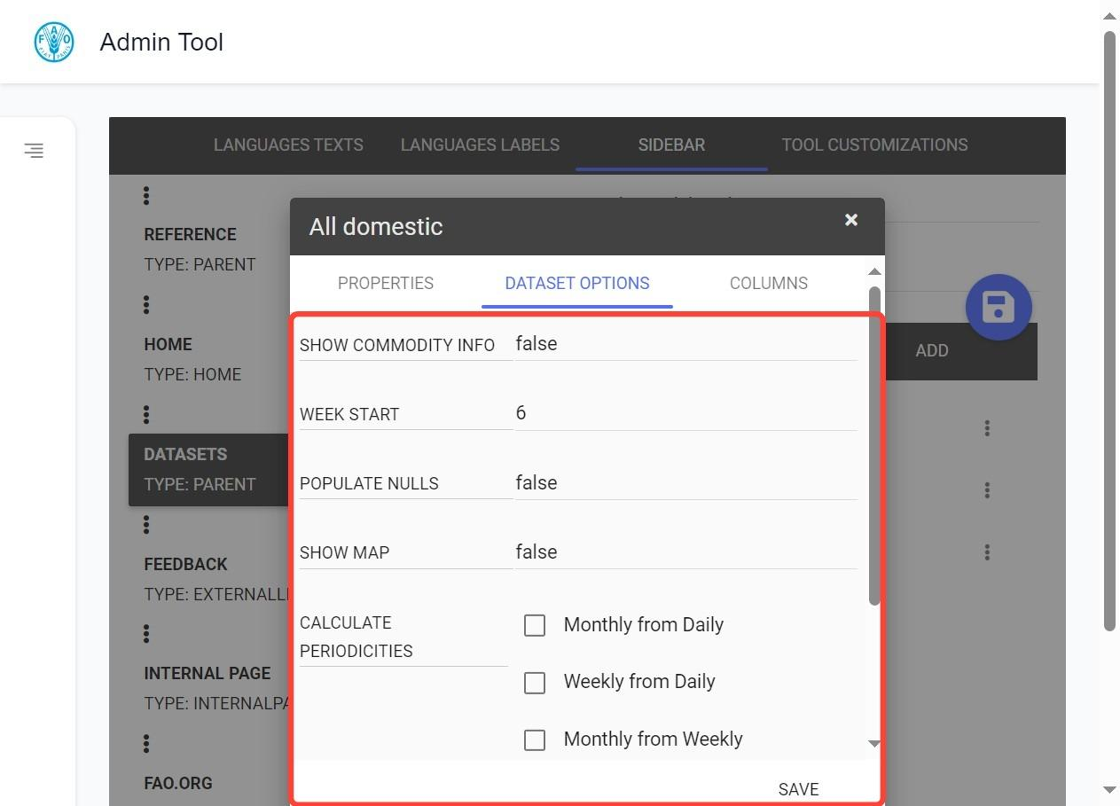
1.2 Dataset Options
- SHOW COMMODITY INFO - (true or false) If
truean "i" icon is placed next to commodity names in the data grid that opens a popup with the commodity info content. - WEEK START - Can be 1 to 7 and refers to the day of the week that the system will use to define the start and end of the week for the basis of the weekly average calculation. e.g., if the value is 6 (Saturday) the system will calculate weekly averages with the week-ending dates for each Friday.
- POPULATE NULLS - (true or false) If
truethe system will automatically show empty data points in the chart and data table where data points are missing. - SHOW MAP - (true or false) If
truethe map tab will be visible. - CALCULATE PERIODICITIES - With these options it is possible to activate automatic calculation of weekly or monthly averages from daily and/or weekly periodicity data.
- SHOW PERIODICITIES - These settings determine which of the periodicities can be made visible in the GUI.
1.3 Columns
The COLUMNS section refers to the number, order, and content of the columns that are displayed in the GUI data grid.
- Use the
+button to add a column. The name of the field to be included needs to be specified. The following field names are the ones normally used in the FIELD property of a datagrid column:country_name,price_type,admin_unit,market_name,market_type,commodity_name,currency,measure_unit_label,source_name. - The properties for each column can be viewed by expanding the column entry with the downward arrow to the left of column name.
- LABELKEY - The reference to the key for the label that appears in the column header in the LANGUAGE TEXTS.
- FIELD - The name of the database field to return in the column. The list of possible database fields are shown below.
- FILTERABLE - (true or false) If
truea filter box is placed above the column header. This is set to true by default.
- Columns can be repositioned to the left or right using the
>or<icons located to the right of the column name. - All changes must first be saved using SAVE control within the configuration window for the child item type and again by using the main save button in the parent item type window.

2. Dataset Filters
The following filters can be used in the URL property (see above) to apply a filter to a dataset:
| Query Parameter | Description | Example Usage |
|---|---|---|
| periodicity | Filters by periodicity | ?periodicity=monthly |
| start_date | Filters by start date within periodicity | ?start_date=2022-01-01 |
| end_date | Filters by end date within periodicity | ?end_date=2022-12-31 |
| newerThan | Filters by last price greater than or equal to the date | ?newerThan=2022-01-01 |
| olderThan | Filters by last price less than or equal to the date | ?olderThan=2022-12-31 |
| iso3_country_codes | Filters by one or more ISO3 country codes | ?iso3_country_codes=AFG,AGO |
| iso3_country_codes_ne | Excludes one or more ISO3 country codes | ?iso3_country_codes_ne=AFG,AGO |
| price_types_ids | Filters by one or more price type IDs | ?price_types_ids=1,2 |
| commodity__hs_class_code | Filters by one or more HS class codes for commodities | ?commodity__hs_class_code=123,456 |
| sources_ids | Filters by one or more source IDs | ?sources_ids=1,2 |
| admin_units | Filters by one or more administrative units | ?admin_units=unit1,unit2 |
| market_types | Filters by one or more market types | ?market_types=type1,type2 |
| market_types_ne | Excludes one or more market types | ?market_types_ne=type1,type2 |
| regional_average | Filters by whether the record has a regional average or not | ?regional_average=true or false |
Filters can be combined in a query string to narrow down the search results. For example:
FpmaSerieDomestic?iso3_country_codes=KEN,UGA&start_date=2022-01-01&end_date=2022-12-31&price_types_ids=1,2
This request fetches data for Kenya and Uganda within the specified date range, including specific price types.
Using these filters, users can efficiently access and navigate the FPMA database to retrieve the specific data they need.
The following field names are the ones normally used in the FIELD property of a datagrid column: country_name, price_type, admin_unit, market_name, market_type, commodity_name, currency, measure_unit_label, source_name.
File Upload
The FPMA Tool allows users to upload content needed for the configuration (such as images and HTML files for the home page, etc.) to the server space of their instance.
To upload generic files such as a logo for the header or images (including commodity images) and HTML files for the home page or other internal pages you may wish to add:
- Select Upload Files from the System Administration section of the Admin Tool.
- Click on the upload icon and select the relevant option: Frontend Files or Commodity Image as applicable.

Click on the +Choose button, browse to select the file or files you wish to upload and Submit.
